Steam
- 1.08M
- 3.1
- Installs
- 100.00M
- Price
- Free

Screenshots

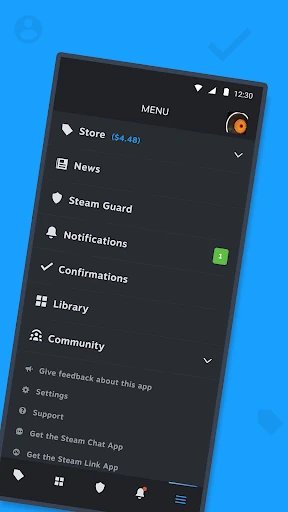
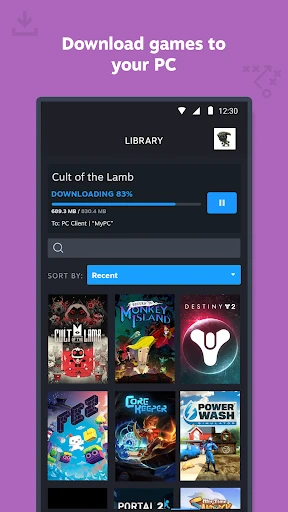
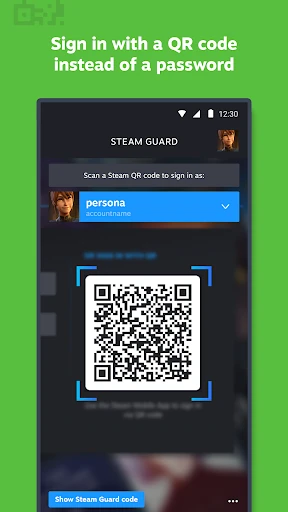
Analysis by Reviewed APKs
Steam’s mobile app brings the PC gaming platform’s store, community, account security, and library tools to an Android phone. I found it most useful as a companion for people who already use Steam on a computer, especially when a sale or account confirmation needs attention away from the desk. It is not a way to play PC games on your phone, but it makes managing a Steam account more convenient.
A Steam check-in on the go
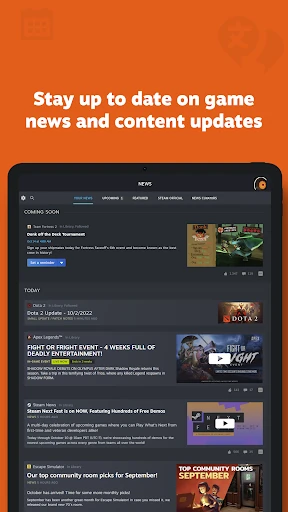
When I first opened Steam on my phone, I imagined using it in the little gaps in my day: checking a wishlist while waiting for coffee, or seeing whether a game update needs attention before I get home. The app gives those quick checks a useful home. I can browse PC games, look at news related to my library, and keep an eye on notifications without opening my computer.
The account tools matter just as much as the browsing. If I’m signing in on a computer, Steam Guard can let me scan a QR code or approve a sign-in from my phone. I can also confirm trades and Market activity there. That makes the app feel less like a small version of the desktop store and more like a pocket companion for the parts of Steam that benefit from being close at hand.
A companion, not a gaming device
Steam Mobile makes the most sense alongside Steam on a PC. The app can help me shop, follow community activity, manage account access, and start downloads or updates to my PC remotely. That last detail is handy when I remember a game I want to play later but am nowhere near the computer. It connects phone-based planning with the PC library rather than replacing the PC experience.
That distinction is worth keeping clear: this is not an app for playing Steam’s PC games on a phone. Its strengths are account management and access to Steam’s store and community. If I only want a general gaming news feed, or have no interest in a Steam account and PC library, much of the app’s value will be beside the point. It is built around the Steam ecosystem.
Small habits that help
I get more from the app when I treat notifications as a short list of things to check, rather than leaving every alert on by default. Steam lets me customize notifications for items such as wishlist activity, sales, comments, trades, discussions, and friend requests. Choosing the alerts that matter makes a quick phone check feel more focused, especially during a busy week or a seasonal sale.
It also helps to make the app fit the way I use Steam. I can customize the main tabs, keep an eye on library-related news, and review which devices have access to my account. If I use more than one Steam account, the app supports multiple accounts. These are modest workflow touches, but they make it easier to use the phone for a specific task and then get on with my day.
More From Our News Desk

Zoom Meetings, Google Meet, or Teams: Which Is Easiest to Join?

How I Build a Free Streaming Lineup With Tubi

Why Crunchyroll Is the Default Anime App for So Many Fans

YouTube TV: A Practical Guide to Cutting Cable

Rummikub and the Small Comfort of Phone Games

TeamViewer Remote Control or AnyDesk for Helping Family?
Who will get the most from it
I’d recommend Steam Mobile to regular Steam users who want to browse the PC game catalog, follow news about their library, or handle account confirmations away from a computer. It is particularly useful if you shop during sales, make trades, or sometimes need to manage a download before you return to your PC. Steam Guard also gives account-conscious users a practical reason to keep the app close.
It may feel unnecessary if you rarely use Steam, do not have a PC game library, or expect a phone app that lets you play those games. Some people may also prefer doing store browsing and community reading on a larger screen. The mobile app is best thought of as an optional extension of a Steam routine: valuable for certain quick tasks, but not a substitute for the desktop platform.
Steam is published by Valve Corporation and is available on Google Play for Android. Google Play shows more than 100 million installs and a 3.1-star rating from around 1.08 million ratings. The app is free to download, with no in-app purchases or ads indicated in the provided store details. Its content rating is Teen.
The supplied app details give version 3.10.11, a release date of January 26, 2012, and a last update date of August 28, 2026. No minimum Android version is provided in the supplied details, so check Google Play for device compatibility before installing. Store information, including compatibility and version availability, can change over time.
A Practical Companion for Steam
Opening and getting settled
My first impression is that Steam Mobile is a utility for people who already know what Steam is, not a guided introduction to PC gaming. Its job becomes clearer when I think of it as a way to check my account and community while away from my computer. The app brings together the store, library-related material, friends, and security tools rather than centering on one isolated task.
Getting settled is mainly about choosing how I want the app to fit my routine. Steam supports multiple accounts and lets users customize the main tabs, so I can make the phone experience more relevant to the account or features I use most. I would also take a moment to consider which notifications I actually want. That small bit of setup can make later check-ins less noisy.
The day-to-day experience
In everyday use, I see the app working best in short visits. I might check a wishlist notification, browse a game page, catch a publisher update, or respond to a friend-related alert, then close it again. The app also offers access to discussions, groups, guides, the Market, Workshop, broadcasts, screenshots, and inventory. There is plenty to explore, but I do not need to treat every visit as a long session.
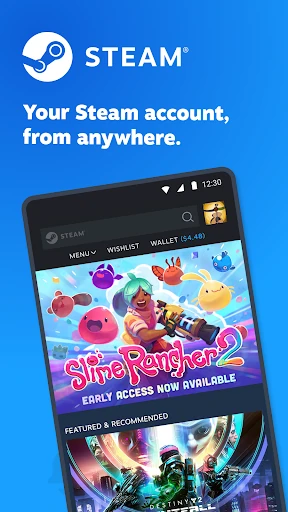
The mobile store is adapted for phone browsing, which suits a quick look at the catalog better than a deep comparison across a large screen. I like being able to act on a sale reminder while I’m out, though I would still choose a computer for a longer stretch of browsing. That split feels natural: phone for awareness and quick account tasks, PC for settling in and making gaming plans.
Security and library tools
Steam Guard is one of the app’s clearest reasons to exist. It supports two-factor authentication, QR-code sign-in, and sign-in confirmations that I can approve or deny. When I need to sign in on a computer, having a phone-based confirmation can be quicker than reaching for a password. The app also lets me manage authorized devices, which gives me a place to review account access.
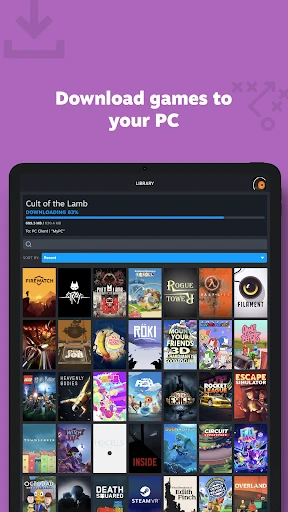
The library and remote download tools add another useful connection to the PC. From the phone, I can view game content, discussions, guides, and support, and manage downloads and updates on my computer. I like the practical idea of getting a download underway before I sit down to play. The app remains a manager and companion here; it does not turn the phone into the gaming hardware.
A useful weekly routine
A simple routine I can imagine is checking Steam Mobile once in the morning or evening, rather than repeatedly opening it throughout the day. I’d scan relevant wishlist or sale notifications, look at news tied to my library, and handle any pending sign-in, trade, or Market confirmations. If a game needs an update, I could use the app to manage the download on my PC before I get home.
That routine works best when the notification settings reflect my habits. Someone who follows friends and discussions may want different alerts from someone who mainly watches a wishlist and buys games. Customizable notifications and main tabs help keep the app pointed toward those priorities. I would use the phone for the quick decisions and leave longer reading or shopping sessions for a time when I have more attention.
Limits to keep in mind
The biggest limitation is also the easiest expectation to correct: Steam Mobile is not a phone gaming app for the PC games in my library. Its remote features concern downloads and updates to a PC, while its other strengths are store, community, and account tools. Anyone looking to replace the Steam desktop experience will find that the mobile app has a narrower role.
Its usefulness also depends on already being part of Steam. The range of community features and library-based news is appealing when I have games, friends, and activity to follow; otherwise, the app can feel like a collection of tools without much personal relevance. And while a phone is convenient for short checks, it is still a smaller place to browse a broad game catalog or spend a long time reading discussions.
Steam Mobile earns its place on my phone by making account security, store checks, community updates, and PC download management easier to reach. I especially value the sign-in confirmations and the ability to deal with small Steam tasks away from my computer. The app is most convincing as a companion, not as a replacement for Steam on PC.
If Steam is already part of your gaming routine, I think the app is worth trying, particularly if you shop from a wishlist or want account tools close by. If you want to play PC games directly on your phone, this is not the app for that. For everyone else, its usefulness comes down to how often a quick Steam check would help.
Steam Frequently Asked Questions
What is the Steam app used for?
Steam Mobile lets users browse Steam’s PC game catalog, follow library-related news and community activity, manage account security, and handle certain tasks for a PC library. It supports Steam Guard sign-in confirmations and trade or Market confirmations, and can manage downloads and updates on a PC. It is a companion to Steam, not an app for playing PC games on a phone.
Which devices can run Steam Mobile?
Steam Mobile is available on Android through Google Play. The supplied details do not give a minimum Android version, and compatibility can depend on the device and current store requirements. Check the Google Play page for the latest information about whether it will install on your phone. The app’s download and remote library tools are intended to work with a Steam account and PC.
Does Steam Mobile cost money or include purchases?
The app is free to download, and the supplied Google Play details indicate no in-app purchases and no ads. It provides access to the Steam store, where PC games can be browsed and bought. Individual game prices and offers can vary, so check Steam’s store for current costs. The app itself is a companion for using Steam rather than a separate game.
What Android version does the Steam app require?
The provided app details do not specify a minimum Android version. Requirements may vary as the app and supported devices change, so check the Steam page on Google Play before installing. That is the best place to confirm current compatibility for your phone. The listed app version is 3.10.11, but version availability can differ by device or store timing.
Is Steam Mobile useful if I do not play on PC?
It is most useful for people who already have a Steam account and use Steam on a PC. The app supports shopping, community access, security confirmations, and remote management of PC downloads and updates. If you do not use Steam or want to play PC games directly on a phone, it is unlikely to suit your needs. Its value depends on your Steam routine.
Pros
- Steam Guard offers QR-code sign-in and approve-or-deny confirmations from a phone.
- Remote tools can manage downloads and updates on a PC.
- Customizable notifications help focus attention on relevant Steam activity.
- Brings store, library, friends, and community features into one companion app.
Cons
- It manages a PC gaming account but does not let you play PC games on a phone.
- The app is less useful without an existing Steam account and PC library.
- A phone screen is not ideal for extended browsing or reading.
- Category
- Entertainment
- Version
- 3.10.11